

我的 dotfiles 文件中的终端技巧
我每天都要使用终端。能够快速移动并完成任务极大地提高了我的工作效率,也节省了我大量时间。多年来,我的个人终端配置不断改进,积累了一些我很少见到别人使用的实用技巧。
如果您还不熟悉点配置文件:点配置文件是一种管理通常隐藏在用户主目录中的众多配置文件(大多数文件名以点号开头)的方法。一些开发者喜欢将他们的点配置文件公开托管,供任何人阅读和使用。
dotfiles 仓库通常包含一系列配置文件以及一些 shell 脚本,用于将这些文件从仓库文件夹复制或符号链接到用户的主目录。具备一些 shell 脚本编写经验有助于理解 dotfiles,但如果您有过任何类型的编程经验,您应该能够快速上手 shell 脚本或跟上流程。
本文中的所有内容均来自我的个人 dotfiles 仓库。其中大部分是为 zsh 构建的,但有些也可能适用于 bash——就像网络上的任何代码片段一样,实际效果可能因人而异。
季节性人字纹
我的 dotfiles 仓库中最耀眼的明珠,就是提示符末尾的那组彩色箭头:

这些V形图案纯粹是装饰性的,但每三个月它们都会根据季节变换颜色。我总是忘记这个功能,所以每三个月我打开终端,看到它们又变了颜色时,都会感到一丝欣喜。
工作原理
以下是返回箭头符号的 zsh 函数:
seasonal_chevrons () {
local date=$(date)
local chevrons="❯❯❯"
case $date in
# spring
*Mar*|*Apr*|*May*)
chevrons="%F{cyan}❯%F{green}❯%F{yellow}❯%f"
;;
# summer
*Jun*|*Jul*|*Aug*)
chevrons="%F{green}❯%F{yellow}❯%F{red}❯%f"
;;
# fall
*Sep*|*Oct*|*Nov*)
chevrons="%F{yellow}❯%F{red}❯%F{magenta}❯%f"
;;
# winter
*Dec*|*Jan*|*Feb*)
chevrons="%F{magenta}❯%F{cyan}❯%F{green}❯%f"
;;
*)
;;
esac
echo -en $chevrons
}
~~~{% endraw %}
Then we call the function when exporting the {% raw %}`PS1`{% endraw %} (prompt) variable in {% raw %}`.zshrc`{% endraw %}:{% raw %}
~~~ zsh
export PS1='$(seasonal_chevrons) '
~~~{% endraw %}
At the beginning of the function, we assign the date and a set of chevrons as variables. In case our function doesn't work, we'll return those uncoloured chevrons.
The function reads the date and looks for what month it is, in sets of three. For example, {% raw %}`*Mar*|*Apr*|*May*`{% endraw %} means to match "March OR April OR May". When it finds a match, it reassigns the {% raw %}`chevrons`{% endraw %} variable, colouring them using zsh colour keywords.
At the end of the function, we {% raw %}`echo`{% endraw %} whatever we ended up with.
## Dynamic git identity
Sometimes I use my terminal for personal work, like this article. In those cases, I like my git commits to use my personal email address and not my work email.
Luckily, all the repos that I use for work have the company name in their path, so I set up a dynamic include in my {% raw %}`.gitconfig`{% endraw %} that overrides my configured email address for those directories. It looks like this:{% raw %}
~~~ git
[user]
name = Adam Hollett
email = adamh@example.com
[includeIf "gitdir/i:**/workcompany/**"]
email = adamh@workcompany.com
~~~{% endraw %}
The {% raw %}`includeIf`{% endraw %} directive in {% raw %}`.gitconfig`{% endraw %} only activates the configuration in that category if its pattern is matched. In this case, it looks for the name {% raw %}`workcompany`{% endraw %} in the current path and sets a work email address if it finds it.
## Sort git branches by recency
When you type {% raw %}`git branch`{% endraw %}, your branch list is sorted alphabetically by default. This isn't super helpful. To sort your branches by their last commit date, with the most recent at the top, add this to your {% raw %}`.gitconfig`:
~~~ git
[branch]
sort = -committerdate
~~~
## The git status dot
The command I use most often is probably `git status`. This lets me check where I am in the process of writing and committing code and which files I've changed.
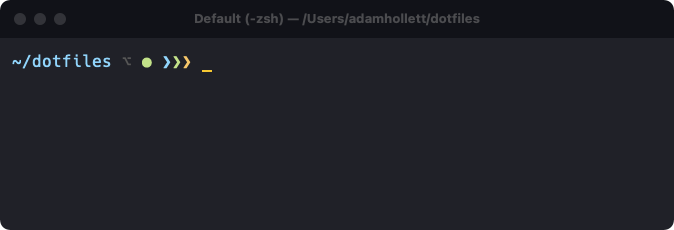
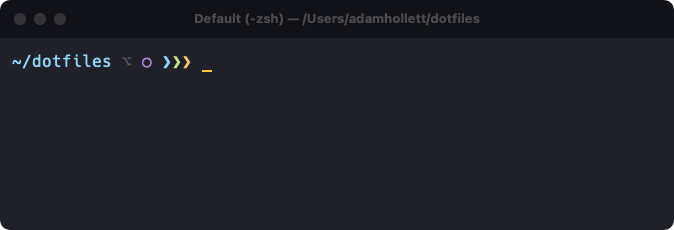
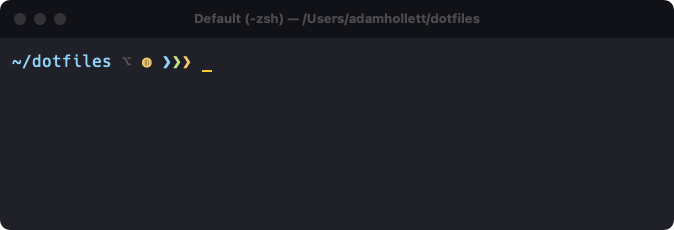
Instead of having to type this command over and over again, I wrote some functions to display a "status dot" for four different states:
- solid green for a "clean" state with no changes:
- hollow purple if any tracked files have been changed:
- shaded yellow if changes have been staged for a commit:
- and solid blue if we have any commits ahead of the remote branch:
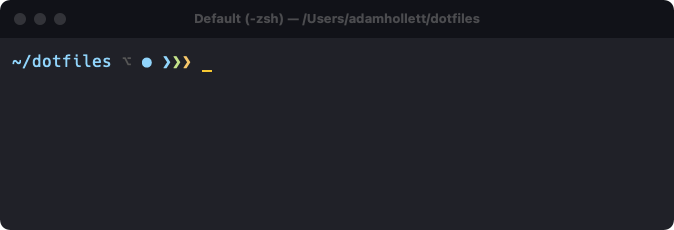
This dot only appears if the current path is a git repo, which has the added bonus of telling me whether I'm currently in a repo.
### How it works
There are a few moving parts to this one. First we have a function called `git_check` that checks whether we're in a git repo by testing the contents of the command {% raw %}`git branch`{% endraw %}:{% raw %}
~~~ zsh
# Return the branch name if we're in a git repo, or nothing otherwise.
git_check () {
local gitBranch=$(git branch 2> /dev/null | sed -e "/^[^*]/d" -e "s/* \(.*\)/\1/")
if [[ $gitBranch ]]; then
echo -en $gitBranch
return
fi
}
~~~{% endraw %}
To be honest I don't exactly know how this works. But if we're in a git repo it outputs the branch name, otherwise it does nothing.
Another function checks the message output by {% raw %}`git status`{% endraw %} and gives back a state name:{% raw %}
~~~ zsh
# Return the status of the current git repo.
git_status () {
local gitBranch="$(git_check)"
if [[ $gitBranch ]]; then
local statusCheck=$(git status 2> /dev/null)
if [[ $statusCheck =~ 'Your branch is ahead' ]]; then
echo -en 'ahead'
elif [[ $statusCheck =~ 'Changes to be committed' ]]; then
echo -en 'staged'
elif [[ $statusCheck =~ 'no changes added' ]]; then
echo -en 'modified'
elif [[ $statusCheck =~ 'working tree clean' ]]; then
echo -en 'clean'
fi
fi
}
~~~{% endraw %}
I use these functions in another {% raw %}`git_dot`{% endraw %} function. You can see at the beginning here that if {% raw %}`$gitCheck`{% endraw %} does not get assigned then most of the body of this function is skipped — there's no need to do any of this if we're not currently in a git repo:{% raw %}
~~~ zsh
# Print a dot indicating the current git status.
git_dot () {
local gitCheck="$(git_check)"
if [[ $gitCheck ]]; then
local gitStatus="$(git_status)"
local gitStatusDot='●'
if [[ $gitStatus == 'staged' ]]; then
local gitStatusDot='◍'
elif [[ $gitStatus == 'modified' ]]; then
local gitStatusDot='○'
fi
if [[ $gitCheck && ! $gitCheck == 'master' && $COLUMNS -lt 100 ]]; then
echo -en "%F{#616161}⌥%f "
fi
echo -en "%F{"$(git_status_color)"}$gitStatusDot%f "
fi
}
~~~{% endraw %}
At the end of the above function we invoke another function called {% raw %}`git_status_color`{% endraw %} to apply a colour to the dot based on the current git status message, using the same {% raw %}`git_status`{% endraw %} function as before:{% raw %}
~~~ zsh
# Return a color based on the current git status.
git_status_color () {
local gitStatus="$(git_status)"
local statusText=''
case $gitStatus in
clean*)
statusText="green"
;;
modified*)
statusText="magenta"
;;
staged*)
statusText="yellow"
;;
ahead*)
statusText="cyan"
;;
*)
statusText="white"
;;
esac
echo -en $statusText
}
~~~{% endraw %}
Looking at this now, I can see that there's a lot of refactoring that could be done here. This doesn't necessarily need four separate functions. One of the great things about writing and maintaining your own dotfiles is being able to learn and improve as you get more practice.
## git start
Here's a quick one: a git alias to return you to the master branch, pull the latest changes, and clean up any stray files. Add this to your `.gitconfig`:
~~~ git
[alias]
start = !git checkout master && git pull && git clean -fd
~~~
Then type `git start` anywhere to run all three commands.
## Responsiveness
I got involved in front-end development right around the time that responsive design was taking over the web. With responsive design, the contents of a web application change to fit the window or device it's being viewed with.
You can do the same thing with your terminal prompt by reacting to the number of columns available using the {% raw %}`$COLUMNS`{% endraw %} environment variable.
You may have noticed this in the {% raw %}`git_dot`{% endraw %} function in the last example:{% raw %}
~~~ zsh
if [[ $gitCheck && ! $gitCheck == 'master' && $COLUMNS -lt 100 ]]; then
echo -en "%F{#616161}⌥%f "
fi
~~~{% endraw %}
This part of the function checks the current branch name. If it is _not_ {% raw %}`master`{% endraw %}, and if the number of columns available is less than 100, then it outputs a grey "option" symbol you may recognize from a Mac keyboard: ⌥. This lets us know that we are on a branch.
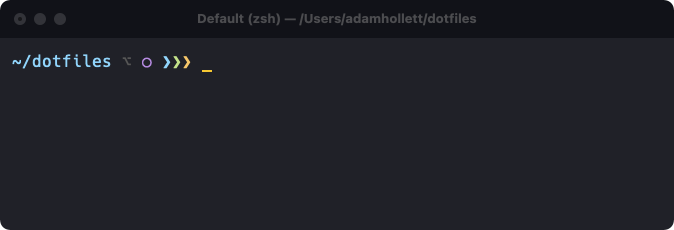
But if our terminal window is large enough, we can just print the branch name. zsh allows you to assign a variable {% raw %}`RPROMPT`{% endraw %} to right-align part of your prompt, so I assign that in {% raw %}`.zshrc`{% endraw %}:{% raw %}
~~~ zsh
export RPROMPT='$(git_branch)'
~~~{% endraw %}{% raw %}
~~~ zsh
# Print a label for the current git branch if it isn't master.
git_branch () {
local gitBranch="$(git_check)"
if [[ $gitBranch && ! $gitBranch == 'master' && $COLUMNS -gt 79 ]]; then
echo -en "%F{#616161}⌥%f %F{"$(git_status_color)"}$gitBranch%f"
fi
}
~~~{% endraw %}
So on larger windows we get this:
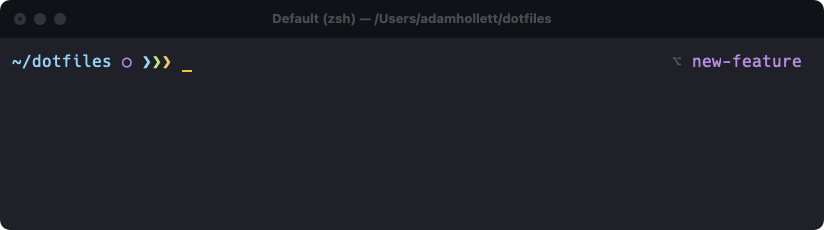
The full branch name uses the same colour as the git status dot.
## Try it yourself
There is a lot more useful stuff in my dotfiles, including my [Ruby configuration](https://github.com/adamhollett/dotfiles/tree/master/ruby), my [.editorconfig](https://github.com/adamhollett/dotfiles/blob/master/editor/.editorconfig), and [a whole bunch of aliases](https://github.com/adamhollett/dotfiles/blob/master/shell/aliases.sh).
If you're interested in building your own set of dotfiles, the best place to start is by exploring other peoples' setups. dotfiles.github.io has a [good list of example repositories](https://dotfiles.github.io/inspiration/). Fork someone else's, or start from scratch and build your own piece by piece. If you're new to shell scripting, this is a fantastic way to start.
----
Cover photo by [Arnold Francisca](https://unsplash.com/@clark_fransa?utm_source=unsplash&utm_medium=referral&utm_content=creditCopyText) on [Unsplash](https://unsplash.com/s/photos/code?utm_source=unsplash&utm_medium=referral&utm_content=creditCopyText).